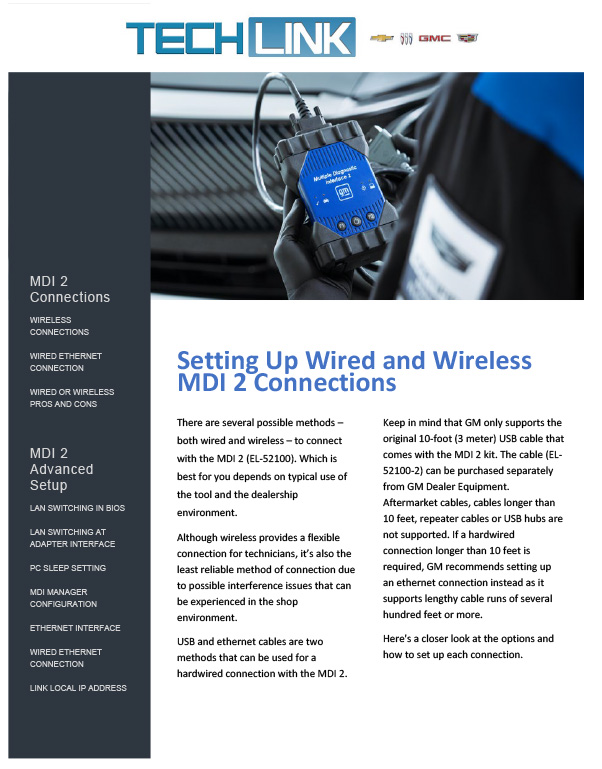
The latest software update for the MDI 2 Manager is being rolled out to GM dealerships (U.S.) The staggered rollout of the new MDI 2 Manager software (version 9.7.3109.193) includes interface changes to the connection status icons, new logging status icons and a new algorithm for selecting the optimal channel for wireless connections.
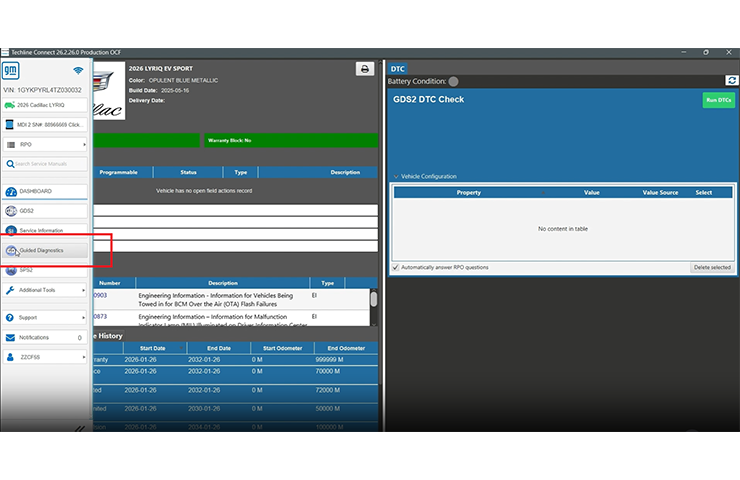
The update for the MDI 2 Manager application software, which allows the MDI 2 to communicate with the host computer, should automatically download and install when opening Techline Connect (TLC).
Log Status Icons
Once connected to an MDI 2, you’ll see new log status icons. (Fig. 4) These are intended to be used by the support centers to indicate whether or not logging is turned on.
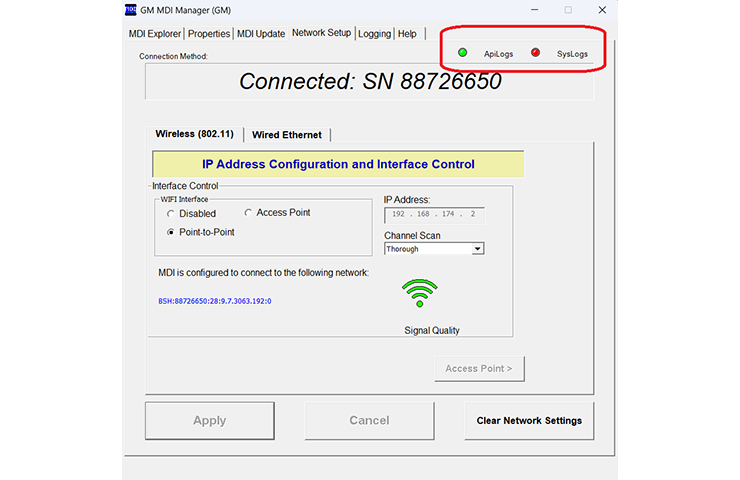
Fig. 4
Wireless Channel Scan Algorithm
The wireless channel scan algorithm also has been improved. It’s recommended to use the default “Thorough” setting for optimal performance. (Fig. 5) Other options are available for unique use cases.
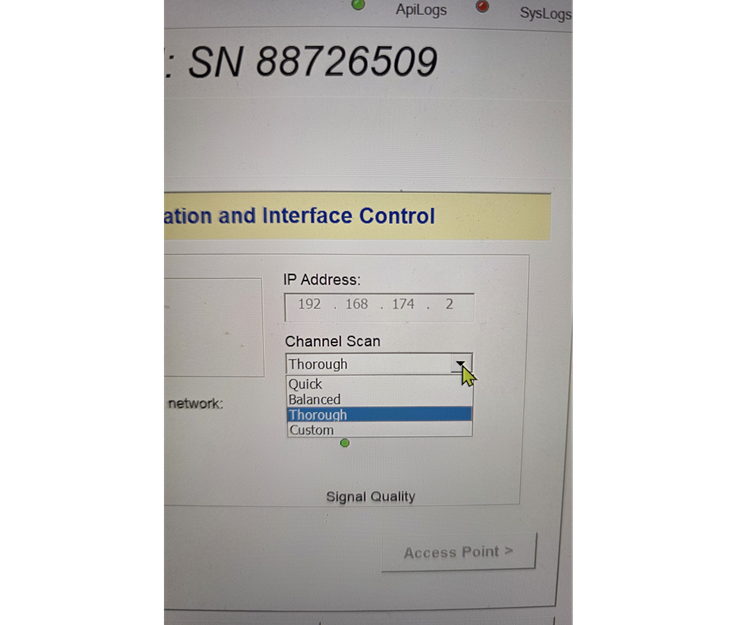
Fig. 5
For more details about the changes and functionality, click the “Help” tab and then the “Product Help” button in the application.
Software Rollout
The initial rollout of the software update will include a select list of dealers from several states as well as all medium-duty dealers. Additional dealers in other states will be added over the next few weeks.
When the update becomes available to your dealership, the MDI 2 Manager update will begin when logging in to Techline Connect. As a user, full administrative rights are needed to install the update. If encountering issues with the MDI 2 Manager update not installing or functioning properly, right click on the TLC icon on the desktop and select “Run as administrator.”
If there are any questions about the software update, assistance can be provided by using the CX Connect portal in Global Connect. If additional support is needed once the CX Connect case is created, contact the Techline Customer Support Center (TCSC) at 1-800-828-6860.
– Thanks to Chris Henley