
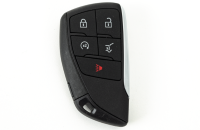
Digital key is a new convenience feature that allows a customer to use a compatible smart device, such as a smartphone or smartwatch, in place of a conventional key or remote key fob. (Fig. 1)
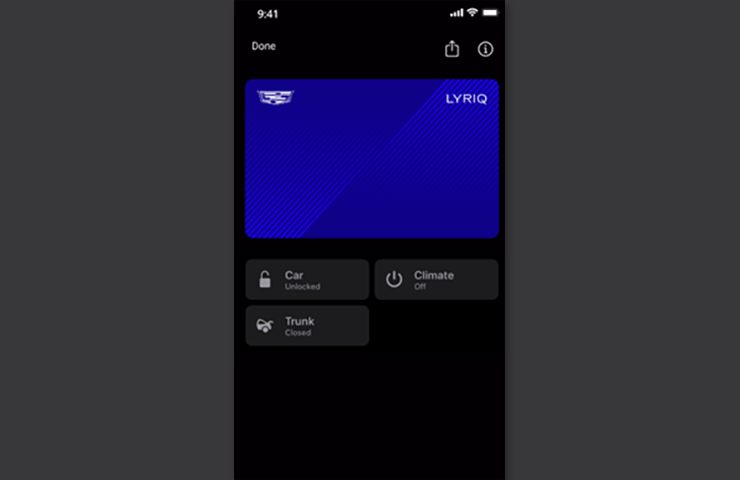
Fig. 1
Digital key will be enabled first on the 2026 LYRIQ and OPTIQ and will be enabled on more models in the future. When the feature is enabled, customers will be notified that they may bring their vehicle to the dealership for a software update or that their vehicle will have the feature enabled via an Over-the-Air (OTA) update, depending on vehicle model and build date. Once the feature is enabled, customers will have the option to set up their digital key on their smart device.
TIP: The digital key is intended to replace the remote key fob, but not for all circumstances. Most importantly, the key fob should be brought in with the vehicle for all service visits to the dealership. For any service concern related to the digital key itself, the digital key device, key card and key fob should be brought in with the vehicle.
Customers have the option of sharing the digital key with up to seven additional digital devices at launch. For instance, if a customer needs a neighbor to move the vehicle while out of town, the digital key can be shared with the neighbor. Once the neighbor no longer needs to use the digital key, either the customer or the neighbor is able to revoke that digital key.
Using the Digital Key
Before using the digital key, the customer’s mobile device must be registered and paired to the vehicle using the myBrand app, e.g. myCadillac mobile app, which will establish the customer’s device as the “Owner Key.” Customers also will need to have an active OnStar subscription. OnStar connectivity is not required for operation of the digital key but is required for the initial setup procedure as well as to add the digital key to a new phone.
The digital key device works much like a passive entry key fob, except pressing the button on the door handle is not required to unlock the vehicle. To use the digital key, the user simply approaches the vehicle with the digital key device and the vehicle unlocks when in range. Remote commands range, including locking/unlocking doors and vehicle starting, for the digital key can be up to 75 feet (23 meters).
Other existing features through the myBrand app do not change. Remote lock, unlock, and vehicle starting through the myBrand app will continue to function the same with an active OnStar account.
The key card also is included as part of the digital key feature and can be used as a backup to the digital key device. In the event the digital key device has an issue, such as a dead phone battery, the key card can be used to gain entry to the vehicle and allow vehicle starting.
Digital Key Operation
The digital key feature consists of new hardware on the vehicle that works harmoniously with the customer’s mobile device to create a convenient, seamless digital key experience.
The vehicle is equipped with a UHF Short Range Low Energy Remote Control Access Transceiver, also referred to as the Virtual Key Module (VKM), and several UHF Low Energy Remote Control Access Sensor Transceivers, also referred to as Virtual Key Sensor (VKS) sensors. The number and location of VKS may vary per vehicle model.
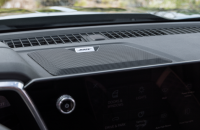
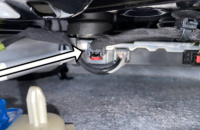
The VKM and VKS devices are short range transceivers and can communicate with a smartphone device. The VKM is typically located in the interior of the vehicle, in a centralized location such as the center console (Fig. 2), while VKS devices are placed on the outside and inside of the vehicle.
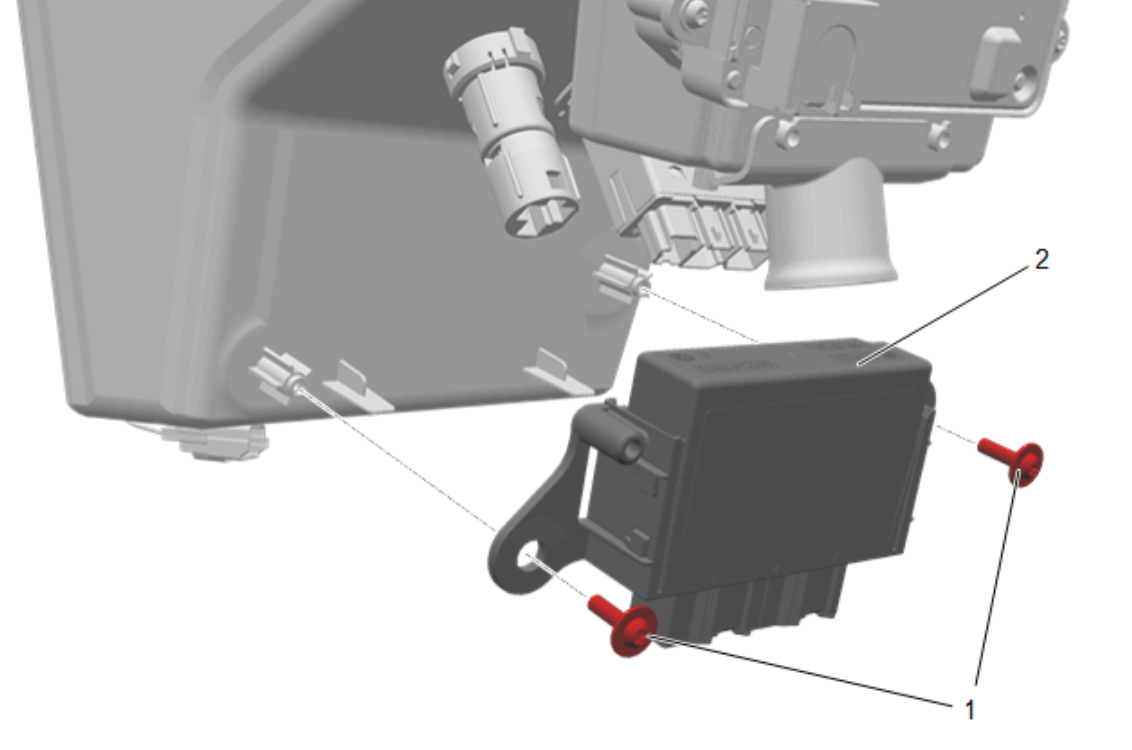
Fig. 2
For more information on how this hardware works, refer to the Digital Key Description and Operation in the appropriate Service Information.
Setting Up and Sharing the Digital Key
To pair a digital key device to a vehicle, a customer must have an active OnStar account and be the owner of the vehicle that the device is being paired to.
To begin the setup procedure using the myBrand app, the customer will need to enter the vehicle with one paired key fob and their compatible mobile phone. With the door closed and the vehicle on, the customer should open the myBrand app. Upon opening the app, a widget displaying “Add Key” will appear. If the widget does not display upon opening the app, look under Keys in the Controls tab on the app. (Fig. 3) After selecting the widget, the customer must follow the instructions to complete the pairing process.
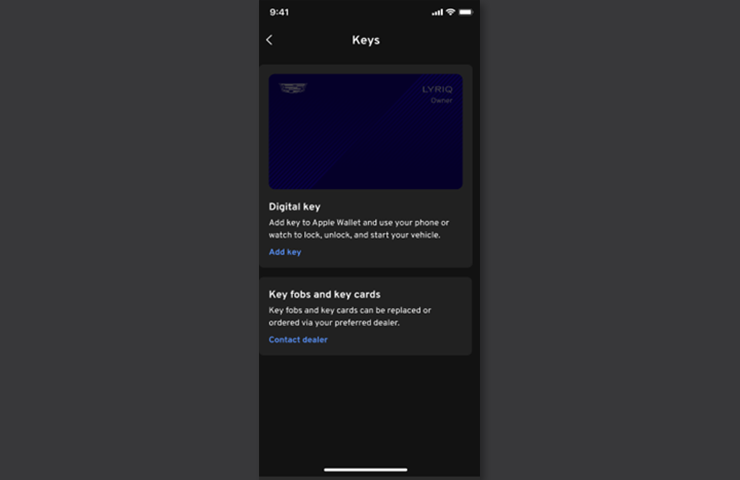
Fig. 3
Upon completion, a key card will appear in the customer’s mobile wallet. This digital key card also can be shared with another individual with a compatible device. To share a digital key, the customer should open the myBrand app and select their digital key. Once the desired key to be shared is selected, select the Share button in the top-right corner. The digital key can be shared via email, text message, AirDrop, etc. After selecting the desired share method, the customer will then be asked if they would like to share the activation code along with the digital key. This activation code is necessary for the user receiving a shared key to use that shared key. Once the digital key is shared, the owner will receive a notification that the key has been successfully shared.
Upon receiving a shared key, the user should verify that the digital key is functional by testing it on the vehicle. A shared key may be terminated by the user or revoked by the owner of the vehicle.
Digital Key in the Service Environment
The digital key feature brings new capability and functionality to enabled vehicles. With the addition of the digital key feature, the key card as well as a paired mobile device can be used to gain vehicle entry and start the vehicle. With this in mind, it is important for customers to understand that the key fob should be brought in with the vehicle for all service visits to the dealership.
Customers who bring their vehicle in for diagnosis of the digital key system should bring their key fob, key card, and share a digital key with a trusted dealership representative on a known compatible device.
For more information, refer to Bulletin #25-NA-385.
– Thanks to Colin Day and Robert Roselle



New models are being added as the digital key rollout continues via Over-the-Air (OTA) updates. When the update is available, the customer will get a notification about enabling the digital key feature. The module also can be updated in the dealership after the OTA update has been released. The customer also should check the myCadillac app for their vehicle. If the digital key image is not displayed, the update is not available yet. The myCadillac app should be updated to ensure the latest version is being used.
The digital key funtion is not coming up for my client. Can you help please ?