The latest Techline Connect update and GM Dealer Infrastructure & Security Guidelines (DISG) release include new firewall exceptions for Techline Connect applications.
For the recent Techline Connect application update, your dealership’s IT should whitelist the following files, in addition to the full list in the DISG, in order for Techline Connect to successfully update:
- C:\Program Files\TechlineConnect\TUM\TLCLauncher.exe
- C:\Program Files\TechlineConnect\TUM\TLCLauncherAdmin.exe
- C:\Program Files\TechlineConnect\TUM\TUM.exe
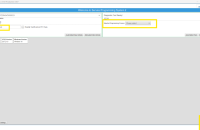
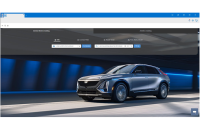
In Control Panel, if the application “Techline Update Manager” is not listed, reach out to your IT to have them whitelist all files before you restart Techline Connect as an administrator. (Fig. 1) If the issue remains, contact the Techline Customer Support Center (TCSC) for the file to be manually installed.
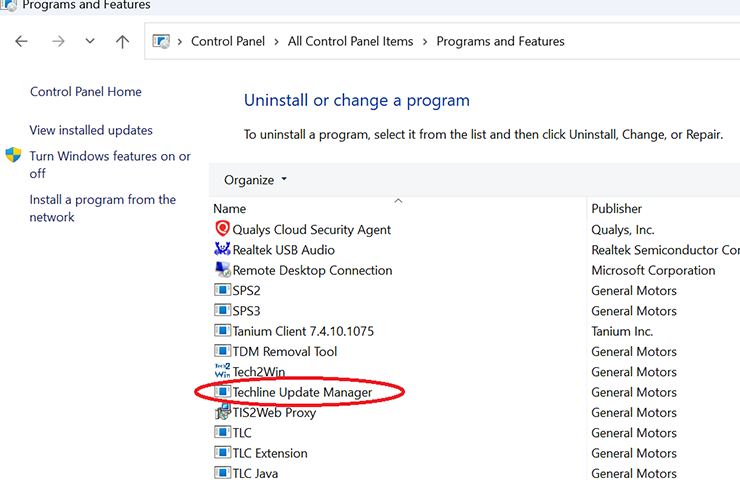
Fig. 1
Techline Connect also may display “Error in Launch4j plugin. This application requires a Java Runtime Environment 11.” If this error is displayed, the following steps should be provided to your IT department.
Using the MS Fixit/Microsoft Uninstaller Troubleshooter for Windows 10 (and Windows 11 devices), remove the program “TUM Launcher,” and then uninstall “TLC Suite 2” from Control Panel or Add or Remove Programs, Next, download the Techline Connect Installer from the Techline Connect web page and install the program again. After the download has completed, restart Techline Connect. If the issue remains, contact TCSC.
When updating applications, many firewalls/antivirus programs will recognize it as a new application. It may be necessary to engage your local IT support to ensure Techline Connect is entered as an exception in these programs to allow normal functionality. As a user, full administrative rights are needed to install the update. If you encounter issues with Techline Connect not functioning properly, right-click the Techline Connect icon on the desktop and select “Run as administrator.”
View the New Guidelines
The Dealership Infrastructure & Security Guidelines (Fig. 2) have been updated to add a firewall exclusion. The following exception was added (see page 7):
- C:\Users\{USERID}\sps\nativelibs\DllTzSale.dll
Ensure all exceptions are added to your firewall exclusions for proper operation and updating of the service software.
Fig. 2
U.S. Dealerships – The latest DISG can be found in the GM Dealer Information Technologies App on GM Global Connect. Select the Dealer Infrastructure & Security Guidelines link at the top of the app’s home page. The DISG also is available on the Service Information home page.
Canadian Dealerships – The latest DISG can be found in the Dealer Security and Information Technology App on GM Global Connect.
– Thanks to Chris Henley