
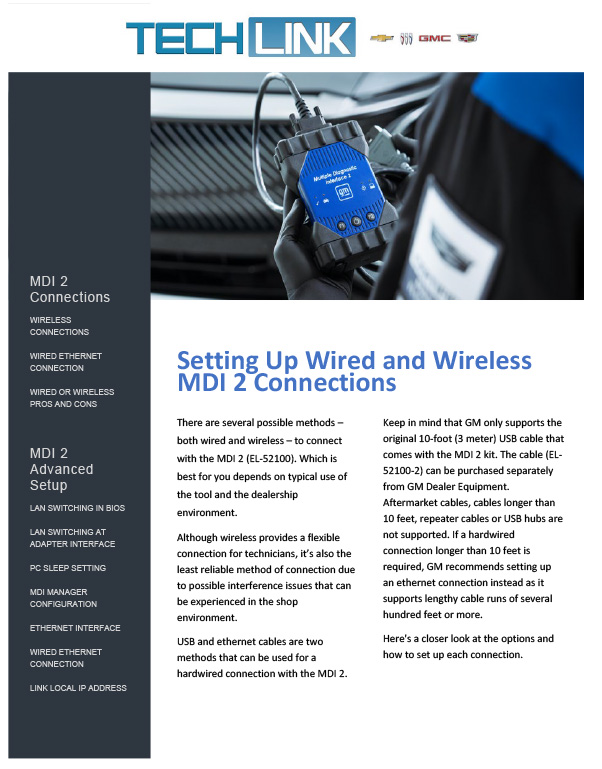
There are several possible methods – both wired and wireless – to connect with the MDI 2 (EL-52100). (Fig. 4) Which is best for you depends on typical use of the tool and the dealership environment.
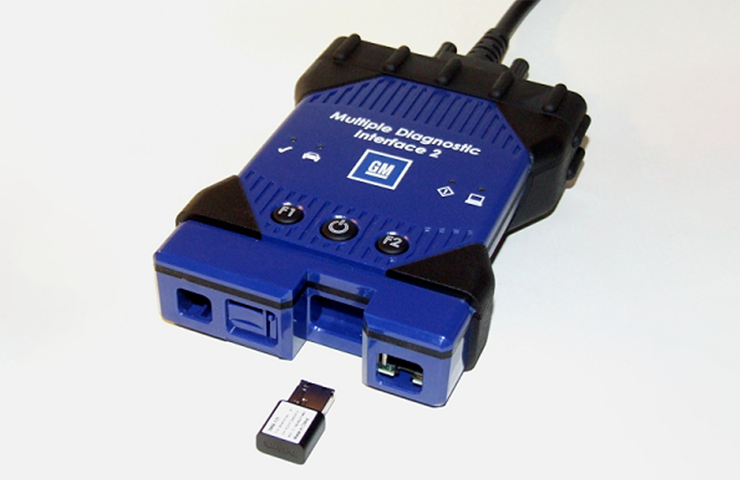
Fig. 4
Although wireless provides a flexible connection for technicians, it’s also the least reliable method of connection due to possible interference issues that can be experienced in the shop environment.
USB and ethernet cables are two methods that can be used for a hardwired connection with the MDI 2. Keep in mind that GM only supports the original 10-foot (3 meter) USB cable that comes with the MDI 2 kit. The cable (EL-52100-2) can be purchased separately from GM Dealer Equipment. Aftermarket cables, cables longer than 10 feet, repeater cables or USB hubs are not supported. If a hardwired connection longer than 10 feet is required, GM recommends setting up an ethernet connection instead as it supports lengthy cable runs of several hundred feet or more.
Here’s a close look at each option and how to set up each connection.
WIRELESS CONNECTIONS
A wireless connection allows the MDI 2 to be used without a physical connection to the PC. However, users will have a more consistent and reliable experience with hardwired connections. Point-to-Point wireless is recommended over Access Point wireless if a user wishes to use a wireless connection.
Point-to-Point Wireless Setup
The Point-to-Point connection establishes a private wireless connection between the MDI 2 and the PC and allows the PC and MDI 2 to be moved outside the range of the shop’s wireless network. (Fig. 5)
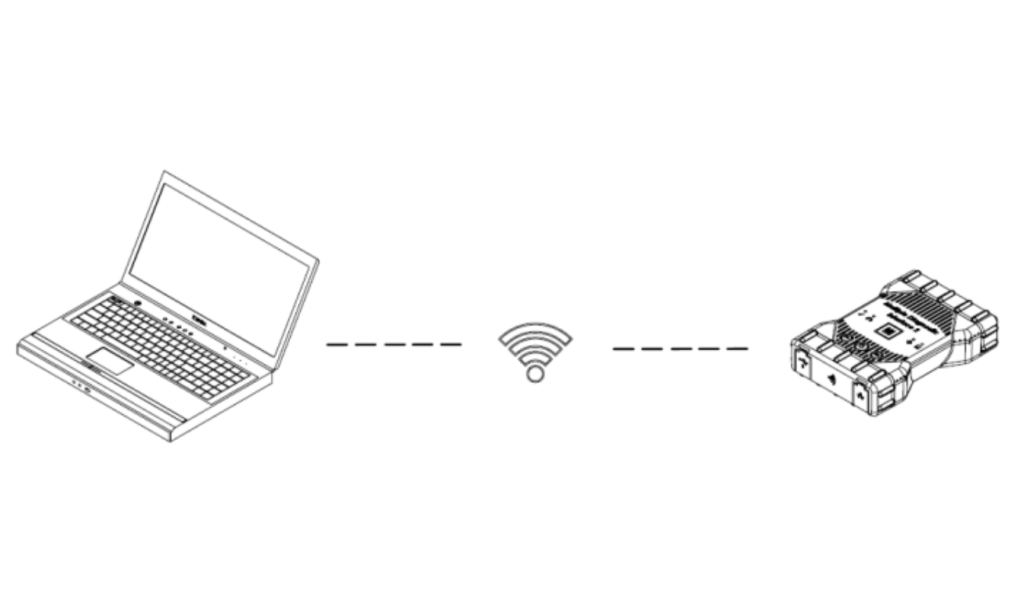
Fig. 5
A Point-to-Point setup only needs to be performed if the MDI 2 has never been connected to the PC being used. If Point-to-Point configuration is needed, a yellow triangle icon will appear over the MDI 2 in the MDI Manager application.
Configuring/Pairing a Point-to-Point Connection
- Plug a supported wireless 802.11 dongle (EL-52100-4) into the PC. (Fig. 6)
- Start the MDI Manager software by clicking the MDI Manager icon.
- Plug the USB cable into the PC and the MDI 2.
- Wait for the MDI 2 to appear in the Explorer window.
- Unplug the USB cable. The device icon should change from USB to Wireless.
- Click Connect to confirm the wireless connection.
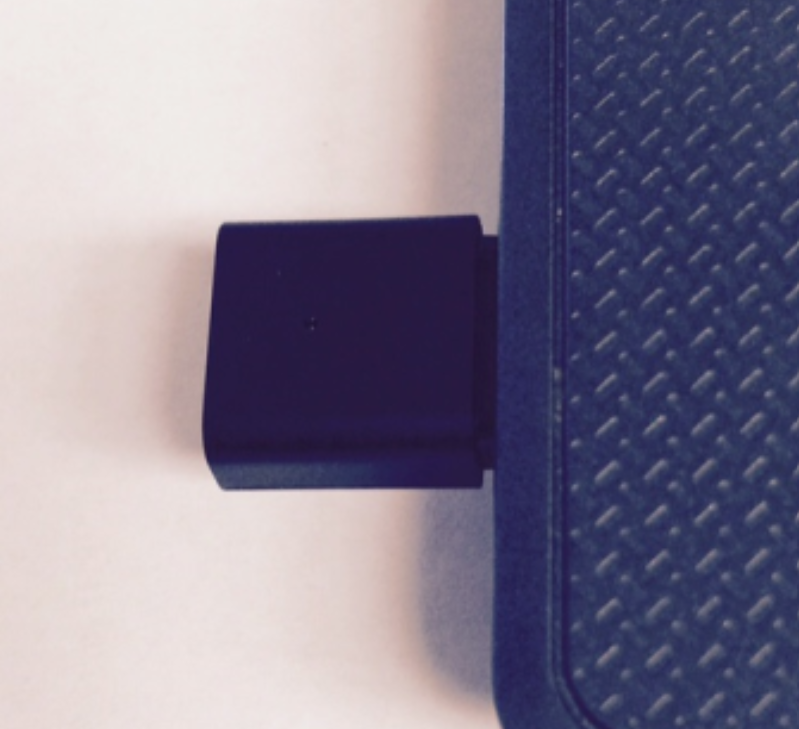
Fig. 6
TIP: In the MDI Manager Network Setup tab, the IP Address Configuration applies only to Access Point wireless. It does not apply to Point-to-Point wireless.
Access Point Wireless Setup
An Access Point connection establishes a shared wireless connection between the MDI 2 and PC. (Fig. 7) The connection is limited to the range of the shop’s wireless network.
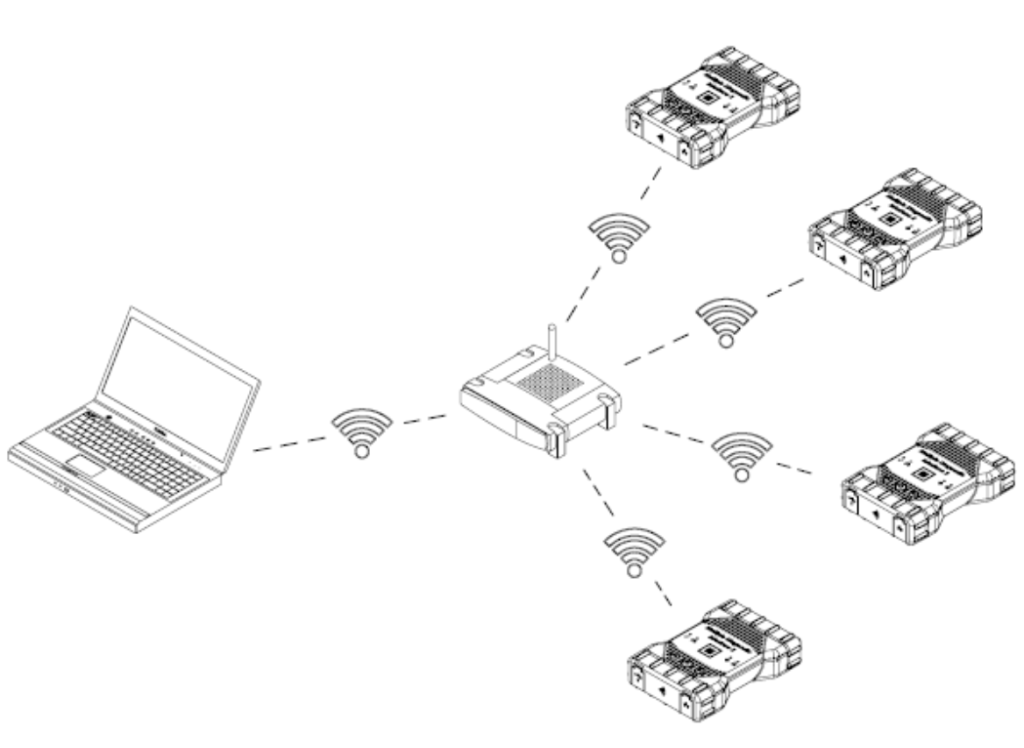
Fig. 7
Configuring an MDI 2 for an Access Point connection is typically done by a network administrator in the dealership. Before modifying the MDI 2 communications interface, contact your IT Administrator if you are not comfortable performing the procedure, or if you need assistance with any of the following items.
- Does the dealership LAN automatically assign IP addresses? If not, you will need an IP Address and Subnet Mask to assign to your tester.
- Wireless communication access point SSID (network name)
- Required network authentication is WPA2
- Required data encryption is TKIP or WEP (64-bit or 128-bit)
- Wireless security password (encryption key)
Configuring an Access Point connection
- Start the MDI Manager software by clicking the MDI Manager icon.
- Plug the USB cable into the PC and the MDI 2.
- Power on the tester via the self-test adapter or by connecting to the vehicle Data Link Connector.
- Select and connect to the MDI 2 in the MDI Explorer tab of the MDI Manager.
- Select the Network Setup tab. If 12 volts is not detected, the MDI Manager will display the message “External power is required.”
- Select the Wireless tab.
- Select the Enable Wireless Interface check box in the Interface Control box to enable the interface. Once the interface is enabled, the IP Address Configuration box and the Apply and Cancel buttons become active.
- Select Obtain an IP Address Automatically if your LAN automatically assigns IP addresses. Otherwise, enter the assigned IP Address and Subnet mask.
- Select Access Point to begin wireless access point configuration.
- If not within range of the access point, or if the access point is not broadcasting its SSID, select the Enter Network Name [SSID] radio button and type the network name.
- If within range of the wireless access point, choose the Select from Available Network List radio button. The list will be automatically updated, and the software will search for wireless network signals. The detected networks are displayed in the Network Name box.
- After entering the network name, select Configure.
- Enter the security setting required by your network, and then select Next.
- Select Yes to re-configure your MDI 2 or select No if you want to start over.
- Select OK. MDI 2 Configuration in Process will flash during the update process. MDI 2 Interface Changes Complete will be displayed briefly when the update process is finished.
- Your MDI Manager will automatically save the last ten wireless configurations that have been used for Access Point communication.
- Do not unplug the MDI 2 from the PC or remove power from the MDI 2 during the update process; otherwise, the MDI 2 will have to be recovered.
- After the update process is complete, select the Properties tab to verify that the MDI 2 is configured correctly.
- Record or print your settings as they are displayed on the Properties tab for future reference.
The MDI 2 is now configured for use when connected to any PC where MDI Manager software has been installed. Installing the MDI Manager software installs certain utilities that are required for Techline Connect to use the MDI 2. It is not necessary to start the MDI Manager software before using Techline Connect.
WIRED ETHERNET CONNECTION
Configuring an MDI 2 for a wired ethernet connection is typically done by a network administrator in the dealership. Before modifying the MDI 2 communications interface, contact your IT Administrator if you are not comfortable performing the procedure, or if you need assistance with any of the following items.
- Does the dealership LAN automatically assign IP addresses? If not, you will need an IP Address and Subnet Mask to assign to your MDI 2.
Configuring a Wired Ethernet Connection
- Plug the USB cable into the PC and the MDI 2.
- Apply 12 volts to the tester via the self-test adapter or by connecting to the vehicle Data Link Connector.
- Start the MDI Manager software by clicking the MDI Manager icon.
- On the MDI Explorer tab, select the MDI 2 and click the Connect button. A check mark appears over the MDI 2 icon to indicate that the connection has been made.
- Select the Network Setup tab.
- Select the Wired Ethernet tab.
- Select the Enable Wired Ethernet Interface check box in the Interface Control box to enable the interface. Once the interface is enabled, the IP Address Configuration box and the Apply and Cancel buttons become active.
- The MDI Manager software will store the changes made for each interface. You can select the other interface, make additional changes, and then apply all changes to both interfaces at once by clicking the Apply button. Start over at any time selecting Cancel, which discards all changes before they are recorded.
- Select Obtain an IP Address Automatically if your LAN automatically assigns IP addresses. Otherwise, enter the assigned IP Address and Subnet mask.
- Select Apply to reconfigure the MDI Manager. Use the screen at the right to check your communication changes.
- Select Yes to continue or No to go back to the Network Setup tab to make any changes.
- Select OK. MDI 2 Configuration in Process will flash during the update process. MDI 2 interface changes complete will be displayed briefly when the update process is finished.
- Do not unplug the MDI 2 from the PC or remove power from the MDI 2 during the update process; otherwise, the MDI 2 will have to be recovered.
- After the update process is complete, select the Properties tab to verify that the MDI 2 is configured correctly.
- Record or print your settings as they are displayed on the Properties tab for future reference.
WIRED OR WIRELESS?
Pros and Cons to Consider (Fig. 8)
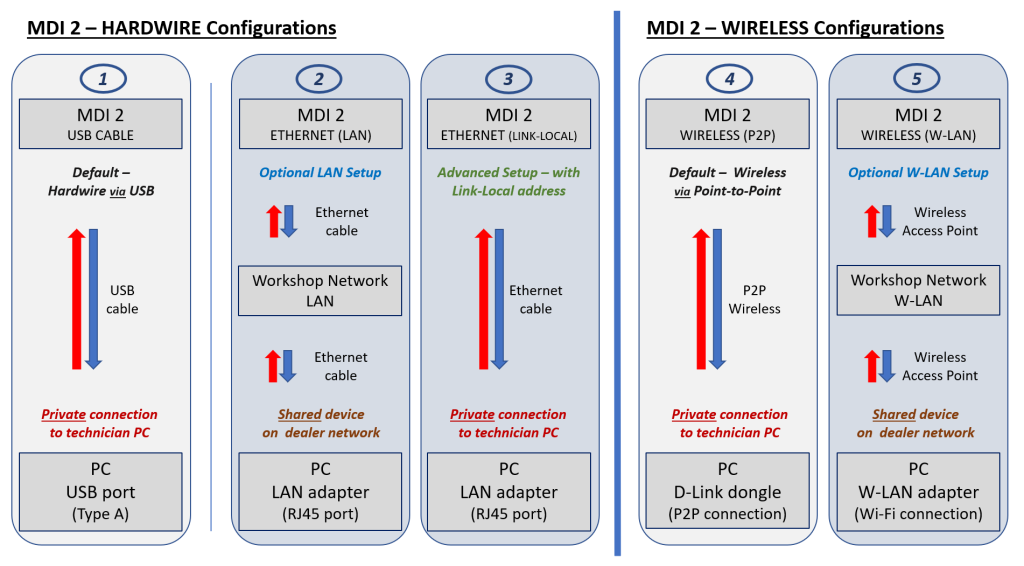
Fig. 8
- USB Cable – Recommended for troubleshooting
PROS
- Simple, easy default method of connection to MDI 2.
- Hardwired reliability (USB cable).
- ‘Direct to PC’ connection permits testing outside boundaries of shop networks (essential for road testing).
- ‘Private’ connection minimizes interference for higher reliability.
CONS
- Movement is restricted by the USB cable length (10 ft.).
- Cables are susceptible to wear and damage.
- ETHERNET (LAN)
PROS
- ‘Shared’ connection permits MDI 2 to be available to multiple PCs across the shop network.
- Hardwired reliability (ethernet cable).
- Greater distance; ethernet cable length can be several hundred feet.
CONS
- Unable to support on road testing.
- Setup is more complex and may require IT assistance.
- Shop network adds complexity; potential for network traffic interference and additional points of failure.
- Complexity makes troubleshooting difficult; TCSC is limited in diagnosis and often requires dealership IT engagement regarding the network.
- Cables are susceptible to wear and damage.
- ETHERNET (LINK-LOCAL Address)
PROS
- Hardwired reliability (ethernet cable).
- ‘Direct to PC’ connection permits testing outside boundaries of shop networks (essential for road testing).
- ‘Private’ connection minimizes interference for high reliability.
- Greater distance; ethernet cable length can be several hundred feet.
CONS
- Secondary network adapter may be required (USB-to-ethernet adapter may be needed).
- Setup is more complex and may require IT assistance.
- WIRELESS (P2P)
PROS
- Relatively simple and preconfigured for easy set up.
- Wireless convenience for cable-free movement.
- ‘Direct to PC’ connection permits testing outside boundaries of shop networks (essential for road testing).
- No cables to be concerned about for wear or damage caused by harsh shop environment.
CONS
- Movement and reliability restricted by wireless range.
- Potential to be exposed and affected by Wi-Fi interference.
- WIRELESS (W-LAN)
PROS
- ‘Shared’ connection permits MDI 2 to be available to multiple PCs across the shop network.
- Wireless convenience for cable-free movement.
- No cabling to be concerned about for wear or damage caused by harsh shop environment.
CONS
- Unable to support on road testing.
- Setup is more complex and may require IT assistance.
- Workshop network adds complexity; potential for network traffic interference and additional points of failure.
- Complexity makes troubleshooting difficult; TCSC is limited in diagnosis and often requires dealership IT engagement regarding the network.
- Movement and reliability restricted by wireless range.
- Potential to be exposed and affected by Wi-Fi interference.
– Thanks to Chris Henley












There are a few known issues with various Windows updates, antivirus software or domain rules that can negatively impact MDI 2 wireless performance. There’s no known issue with the GM software that would cause the issues described. There are thousands of users who successfully use the MDI 2 point-to-point functionality. If you’re having an issue on all the laptops in the shop, it’s likely a common setting or software issue on the laptops. TCSC can assist with troubleshooting. If you create a case with TCSC, correct the issue, and it occurs again, ask them to escalate the issue to a hardware specialist and they can take a deeper dive to see what may be causing your long-term issue. Create a CX Connect case and then call 800-828-6860.
only way i can get p2p to work is if i uninstall all gm software and reinstall it. reconnect mdi2 dongle and it works for about 1 or 2 connections then the laptop will no longer see any mdi2’s in the shop and will not reconnect with any method other then uninstalling and reinstalling gm software. this issue is in the gm software or in the way gm software handles the connection through the computer. and this issue is effecting all laptops in the shop like everyone else who is having the issue. it would be nice for it to work just for scanning vehicles and test driving reasons. have the extra usb cord just gets in the way and is more of an inconvenience then anything. something that has worked for a long time with no issues and all the sudden everyone is have issues does not seem to be a shop/laptop issue.
Same here, point to point has not worked for months after techline updates. This happened on all the shop computers and also on my personal laptop. I have contacted techline multiple times and every time they fix the issue. It is only resolved for a day or 2 max then it will stop working again.
There are a wide range of contributors to wireless issues in a dealership’s environment. TCSC can assist with some known issues but can only go so far when it comes to analyzing dealership infrastructure issues. If your IT set up a hotspot and it works, it sounds like there is something on your dealership’s wireless network that is causing the problem. That generally falls within the scope of your local IT. If you’re satisfied with your current setup, it’s recommended that you stay with that. If you would like someone to review your situation on the dealership network, TCSC can review your case if you provide the case number and/or dealer BAC.
P2P has not worked for months. I tried literally everything without success. Opened a TCSC case, they never responded. Got our IT department involved who called TCSC, they denied that there are any issues with P2P connectivity and were little help. IT ended up creating a hotspot on my laptop for the MDI2 to connect to which has worked well.
p2p hasnt worked since last year–thought it was the dongle—replaced the dongle–didnt help
Your best option is to create a case in CX Connect and contact TCSC to troubleshoot your issue. It may be a bad wireless dongle.
p2p hasn’t worked in a while, I tried changing gm mdi identification service to auto delayed start and it still doesn’t work.
Point to point doesn’t work for me.